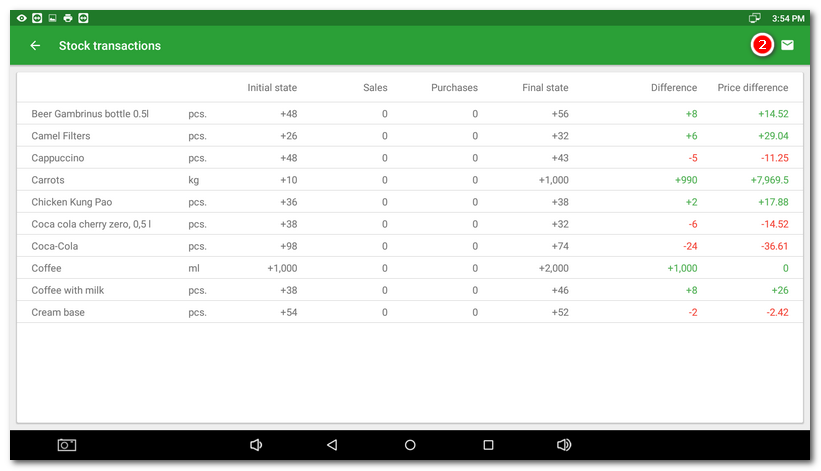
The Warehouse operations report shows the performed stock operations, stocktake differences and sales price differences obtained from stocktakes (usually done at the end of shifts).
To see this report (also known as a “mirror” in the restaurant industry) go to Warehouse app and do the initial stocktaking. This will define the initial volume of all items. The first report will be generated after the second stocktaking when the stock volume between these two stocktakes will be compared. Then after every new stocktaking another report comparing the last two stocktakes will be generated. A complete stocktaking is not required to generate the report as reports are generated even after a partial stocktake (e.g. only drinks or food).
|
If you use multiple warehouses, first select the warehouse in the menu |

 . Then select the stock movement report by tapping on it.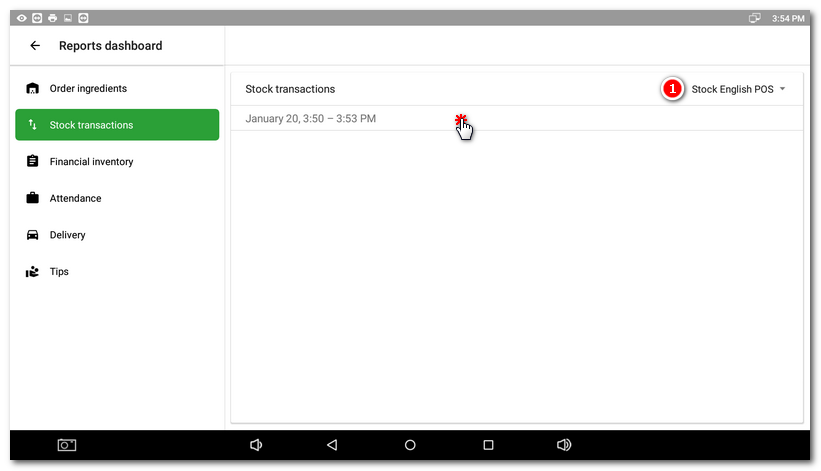
|
A complete warehouse overview will be displayed. You will find a similar report in Stocktake report in Warehouse, which also has an overview of the initial volume, sales, purchases and price differential. Use the button in the upper part to send the report to an e-mail address |

 .
.