» Available only in Dotypos FULL and higher. « |
|---|
Time-based prices allow prices temporarily different from the standard product price to be set. The different price will be valid for the period of time set between two dates. If you need to set a different price for specific days of the week or for a specified time, use Happy Hours.
Example of how to use time-based prices:
In March you are organizing an event to sell a specific product at a discount. However, starting in April the product will be sold again at the regular price.
|
If you are switching to a VAT payer/non-taxpayer, you need to create a new price plan after the change of payer to reflect the new VAT rate applied/not applied. |

How to set prices that are temporarily different
|
For manage prices in Dotypos Cloud, go to the Item management » Products tab and switch to the Prices view in the page header. Then click on the right blue button + Add |

 . Use the buttons
 to edit or delete the rules you have created.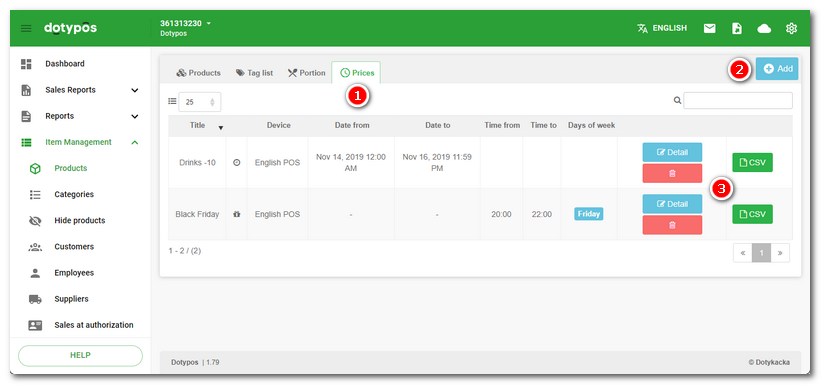
|
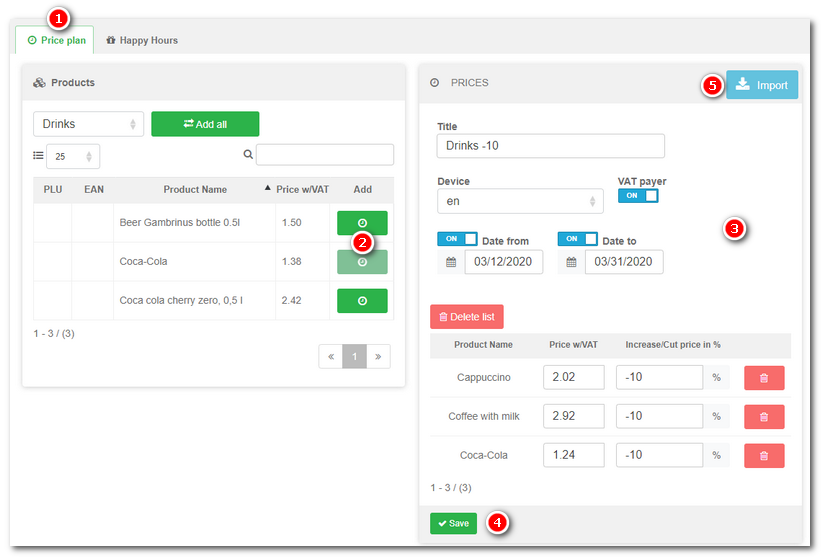
In the item Price plan |

|
Enter Title form promotion, from the pop-up menu Device choose the cash register where this event will be active. In the section Use the button |

 to save the price event. The maximum number of products in all pricing rules should not exceed 1000.
 to import the rules exported in advance, see the
In the preset Date from, the product price will be automatically adjusted at the selected cash register. After the preset date in the field Date to, the product price will automatically return to its original value.
|
You can use the switches ON/OFF to set only one active date. So the rule will be active only from or until the selected date. However, if you fill out the fields Date from and Date to with the same date, the price will not change, because Dotypos calculates the price from midnight of the start date till midnight of the end date, which in this case would be the same time on the same day. For a discount to be valid only one day, you can either enable just one field or set a two-day interval (e.g. 02/09/16 - 03/09/16). Similarly, if you set the Ending date to just be the current day, the price will not change because the system considers the rule to have been followed until midnight of that day and not for the remainder of the day after midnight. So, if you want to change the price for the date 2.9.2016 and you are using only the Date to, you have to set it to 03/09/16. |