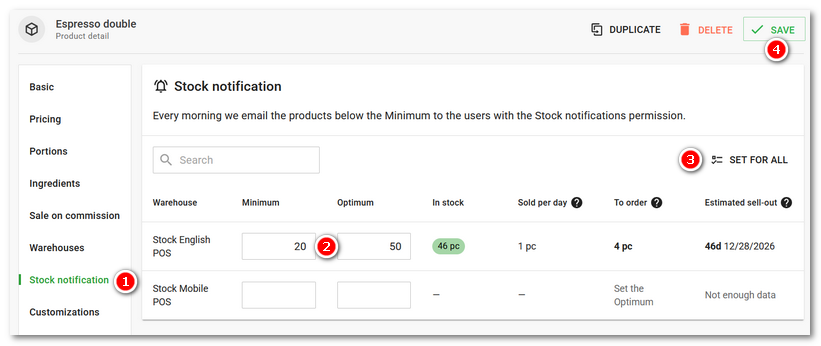
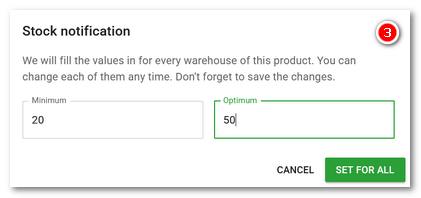
Dotypos cloud allows you to monitor the stock quantities of products using defined rules. Based on the product sales over the last 3 weeks, you will also find out when the product is expected to sell out. Each created rule contains the product and its minimum and optimum quantity (the ideal stock quantity). If the quantity of the product falls below the set level, a notification e-mail will be sent.
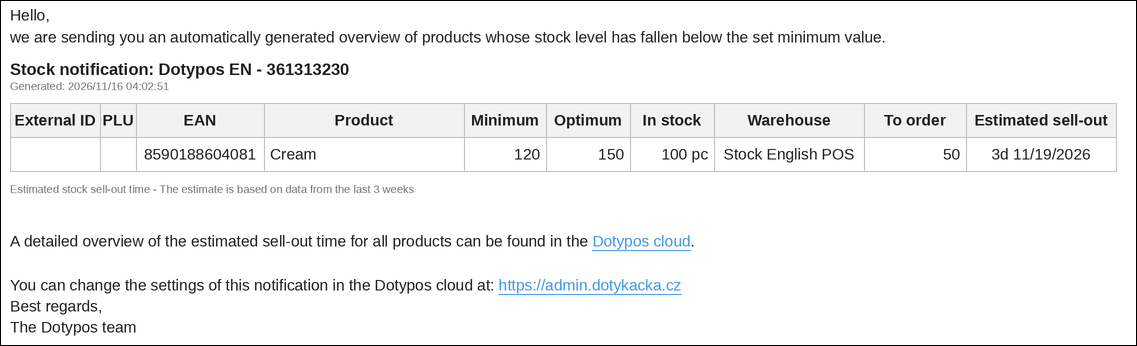
The e-mail is sent every day after 4 a.m. and contains all items from the stock notification rules that are below the set stock limit at the time of sending. One message is always sent per cloud. The message also contains a recommendation of what quantity of the product to order to reach the optimum stock quantity.
How do I create stock notification rules?
How do I create stock notification rules?
|
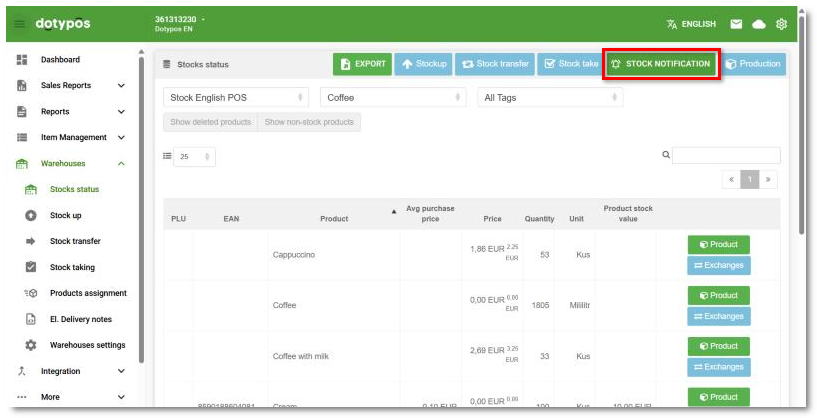
Go to Warehouses » Stocks status and on the upper bar click the STOCK NOTIFICATION button. |

|
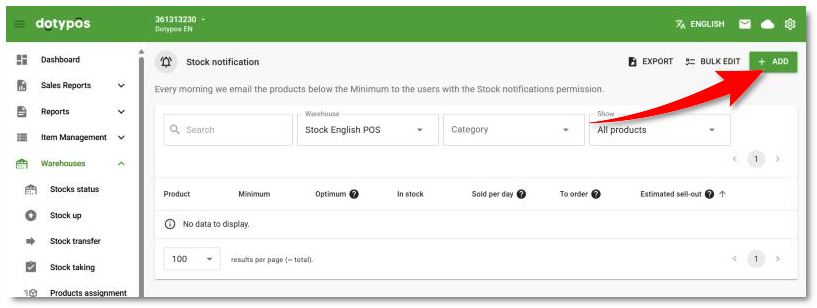
You will be moved to the page with the rules overview. For a new rule, click the + ADD button in the header. |

|
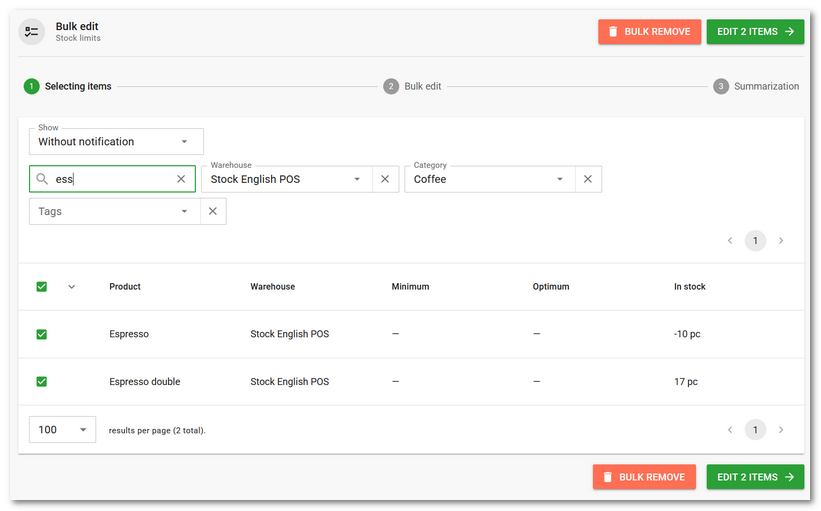
A list of all products in the individual warehouses will be displayed. Use the fields in the header to search for or filter the displayed products and tick the ones for which you want to set stock notification. After selecting the products, continue with the green EDIT X ITEMS button in the header. |

|
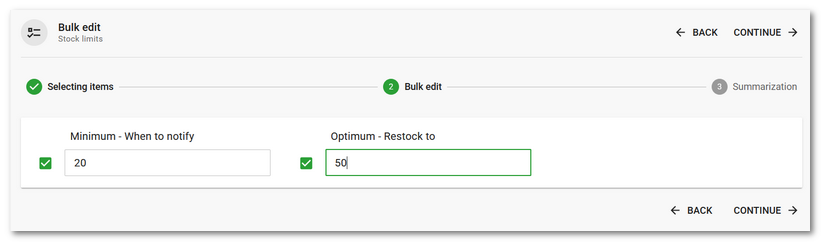
Now enter the minimum quantity you want to be notified about and the optimum quantity that should be in stock. If the quantity of the products falls below the set Minimum, you will be notified by e-mail. If you also fill in the stock Optimum, the message will also state what quantity needs to be ordered to reach the optimum stock level. Continue by clicking CONTINUE in the header. It is possible to enter only one of the values. In that case, deactivate the empty field by clicking the checkbox next to it. If only the Optimum quantity is set, you will only be notified of the need to order the recommended quantity of the product, without stating that the minimum stock level has been reached. If only the Minimum quantity is set, you will only be notified of the minimum stock level, without a recommendation of what quantity of the product to order. |

|
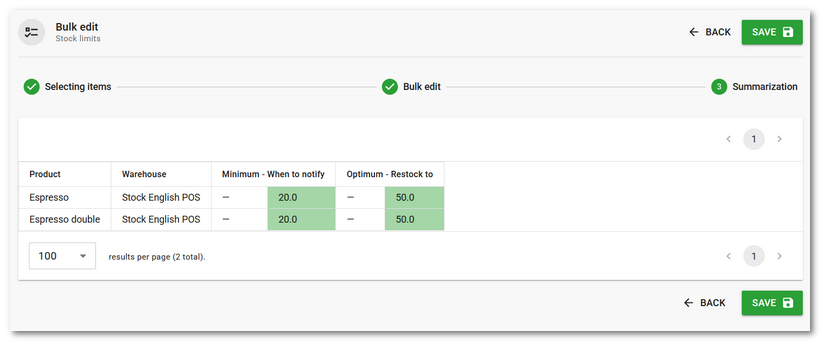
A summary page will be displayed. Save the created rules with the green SAVE button. |

|
Once a day, you will get an e-mail with a .pdf attachment. In the attachment, you will find information about the products that dropped below the set stock limit, including EAN and PLU codes. The message is sent to the e-mail address that you use as your login name to log in to Dotypos cloud. |

|
E-mails with products below the set stock limit are sent to all users within one cloud. If you need to restrict the sending to only selected users, remove the Stock notifications right in the Stock status access group for users who should not receive notifications. |

|
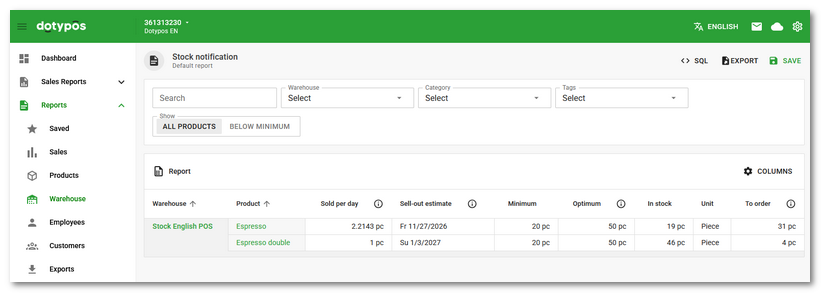
In the Dotypos cloud, you will find warehouse reports with stock notification information - Stock notification product summary, Stock notification by warehouse and Stock notification products. |

How do I edit stock notification rules?
|
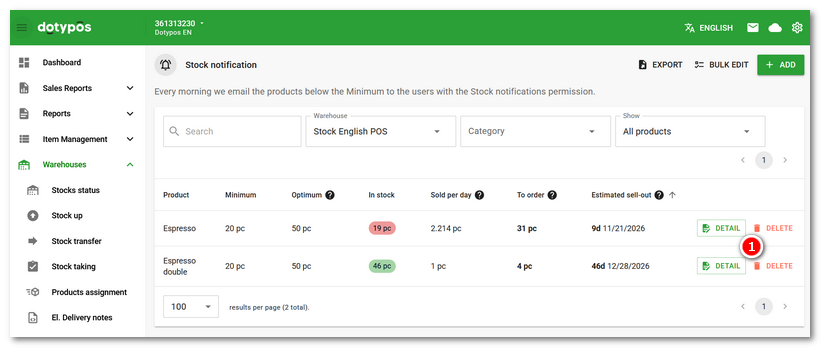
Go to Warehouses » Stocks status and on the upper bar click the STOCK NOTIFICATION button. This takes you to the list of stock notification rules. To edit a rule, click the |

|
Alternatively, go to the product list, open the properties of the selected product and click the Stock notification tab, see the next step. |
|
You will be moved to the Stock notification tab in the product properties |
 . Use the

 .