You can set the VAT rates that can be used for products, categories and instant sale in the Cloud settings. Here you can create or delete VAT rates. Then, in the product list, you assign the rates to products or change them in bulk. This is useful when, due to legislative changes, certain goods (products) being sold need to be “reassigned” to a different VAT rate. You can specify here whether you want to keep the current sales price including VAT even after the rate change, or recalculate the sales price of individual products based on the new VAT rate.
How to add or remove VAT rates?
How to change VAT on selected products in bulk?
Change VAT on products by exporting and importing data
|
Creation / deletion of tax rates, bulk VAT change for selected products can also be done at the cash register in the tax rate editor. |

How to add or remove VAT rates?
|
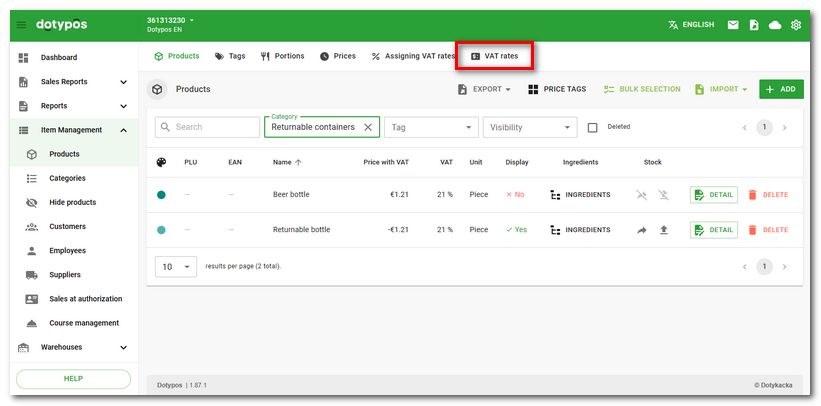
In Remote administration open Cloud settings using the cloud icon in the top right corner. From the tab panel on the left select VAT rates. If you do not see this item, it means the cash register is set to the non‑VAT‑payer mode. |

|
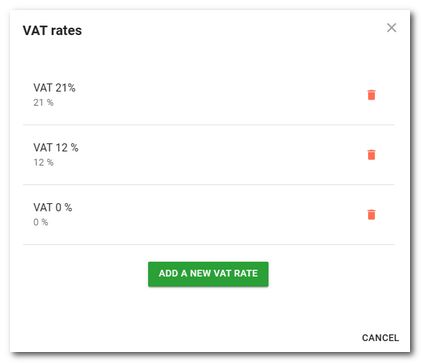
The dialog with the currently created VAT rates in the Dotypos will be displayed. Here, use the ADD A NEW VAT RATE button to add a new VAT rate in percentage. Tap the trash can icon to delete the rate. |

How to change VAT on selected products in bulk?
|
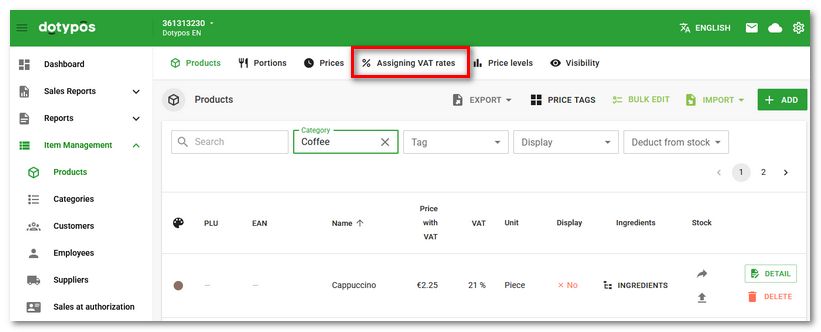
In Dotypos Cloud go to the Item Management » Products tab. In the header, click Assigning VAT rates. |
|
A list of all products will open, which can be filtered based on the selected parameters in the header. Among other things, you can select all products here based on their current i.e. old rate. Check the box |

 , where X is the number of the marked products.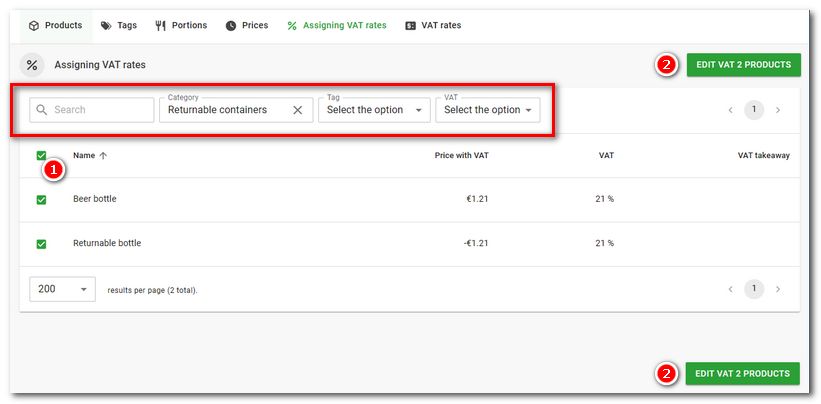
|
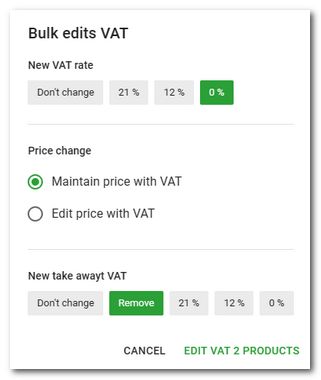
In the following dialog, select the new VAT rate, whether you wish to recalculate the selling price and, if applicable, remove the takeaway rate. Finally, click on the EDIT VAT X PRODUCTS option to overwrite the VAT changes to the marked products. |

Change VAT on products by exporting and importing data
You can also change the assigned VAT rate for products by exporting the products to a file, editing the file and importing it back into the cash register. However, this option is only for advanced users. This modification does not recalculate the selling prices of the products, it only changes their VAT rate.
1.Export the products to an excel file.
2.Make a copy of the exported file and edit it. In the event of an incorrect import, you will have a backup of the original data.
3.Open the exported file and edit the data in the vat column for each product, entering 12 for the 12% rate, 21 for the 21% rate and 0 for the 0% rate.
4.Save the file and import it back into the cash register.
|
After importing an incorrectly edited file, the properties of individual products may be changed! Therefore, be cautious and check the modified file before importing it into the cash register. After importing, we recommend checking the products directly in the item management before actually marking them. |