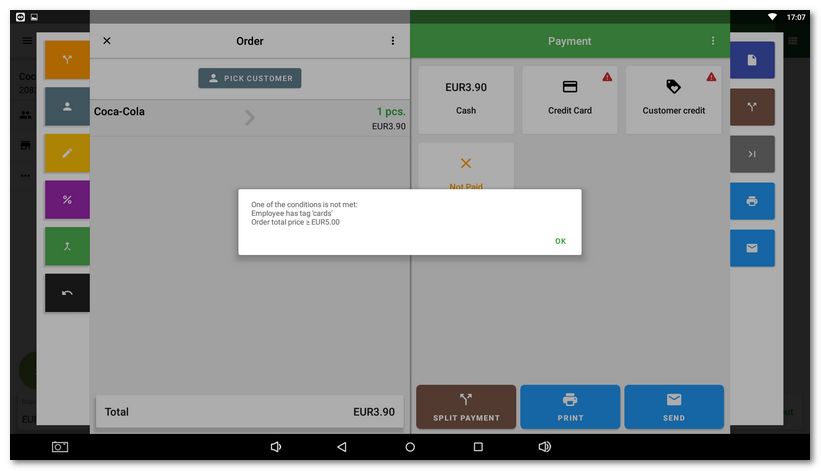
For each added cash register payment method (cash, payment card, meal vouchers, etc.) you can separately set rules that determine when the staff may or may not use it. You can have different rules configured for each payment method.
Available rules for restricting payment methods
Rule / restriction |
Rule description |
|---|---|
Employee has a label |
The rule checks the labels of the employee who is currently logged in to the cash register. This allows you to restrict a payment method based on the permissions or role of the staff member – the logged‑in user. Labels can be assigned to user accounts (employees) either on the cash register in User management or via Dotypos Cloud remote management. |
Customer is / is not selected |
The rule checks whether a specific customer is assigned to the open order. |
Customer has a label |
The rule checks the labels of the customer assigned to the order. Labels can be used to mark, for example, corporate customers, employees, wholesale customers, or customers with special conditions. |
Customer points |
The rule compares the current number of points of the selected customer with the configured value. Depending on the settings, you can check whether the customer has fewer than, more than, or exactly a specified number of points. |
Percentage discount |
The rule checks whether a percentage discount of the configured value has been applied to the order or its items. |
Discount value |
The rule works with the total monetary value of the discount granted. This allows you to set restrictions, for example, for a discount higher than CZK 100 or, conversely, lower than the configured amount. |
Total amount |
The rule compares the final amount of the order with the configured value. It is possible to restrict payment above or below the configured total amount. |
Order is / is not a void |
The rule distinguishes between a regular sales order and a voided or refund order. This allows you to specify which payment methods are available when refunding money for a voided order. |
Order items have a label |
The rule checks whether any of the items on the order has the defined label or multiple labels assigned. |
Displaying / hiding payment methods for staff
If the condition for restricting a given payment method is met, you can choose whether the payment method remains visible in the payment dialog with an exclamation mark but cannot be used by tapping it, or whether it is completely hidden from the staff. For this, use the option Hide payment method when not met for each added condition.
Groups of conditions and their evaluation
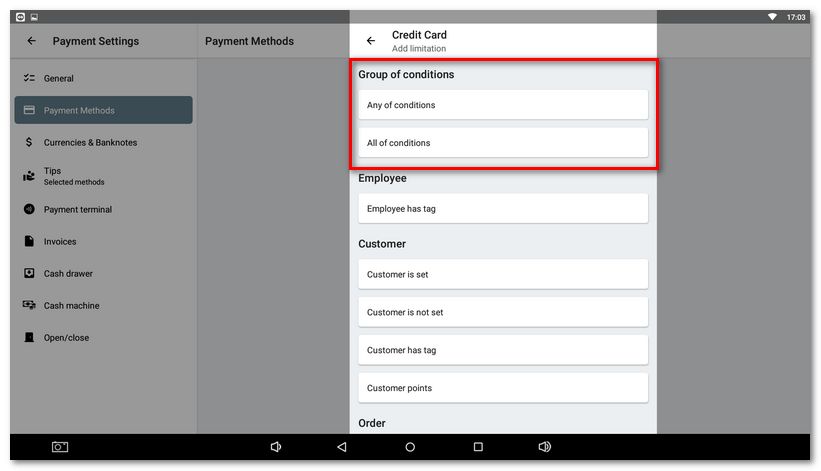
For each payment method you can set several rules and define how they will be evaluated:
•Any of condition must be met – the payment method is restricted as soon as any of the configured rules is fulfilled.
•All of conditions must be met – the payment method is restricted only if all configured rules are fulfilled at the same time.
Example of combining and evaluating conditions
The following rules are set for meal vouchers:
•The order contains a product with the label Alcohol,
•The total amount of the order is higher than CZK 1,000.
With the All of conditions setting, meal vouchers will be blocked only when the order contains alcohol and the amount is higher than CZK 1,000 at the same time. With the Any of condition setting, meal vouchers will be blocked as soon as one of the conditions is met – either because of alcohol or because of an amount above CZK 1,000.
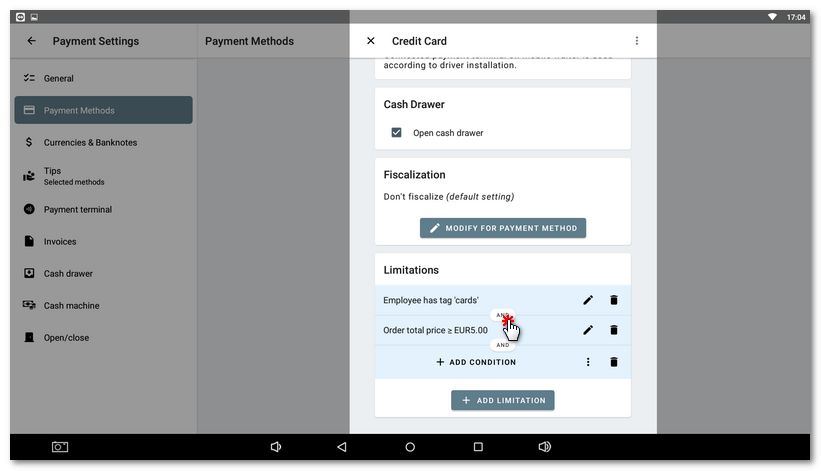
If you use Groups of conditions, all rules will be displayed in a group with the chosen operator. By tapping the operator that links the rules, you toggle it between AND and OR. This determines whether all defined rules must apply (AND) or at least one of them (OR).
How to add and set rules for a payment method?
|
On the main screen of the cash register open the side menu and select Application settings. In the left tab panel then go to Payment settings. Tap the key icon |


 to open the settings of the selected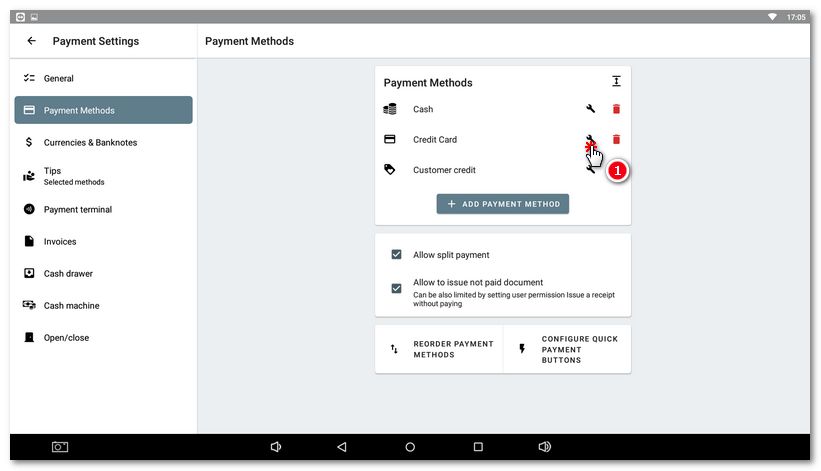
|
In the payment method settings dialog scroll to the bottom and tap the + ADD LIMITATION |

 button.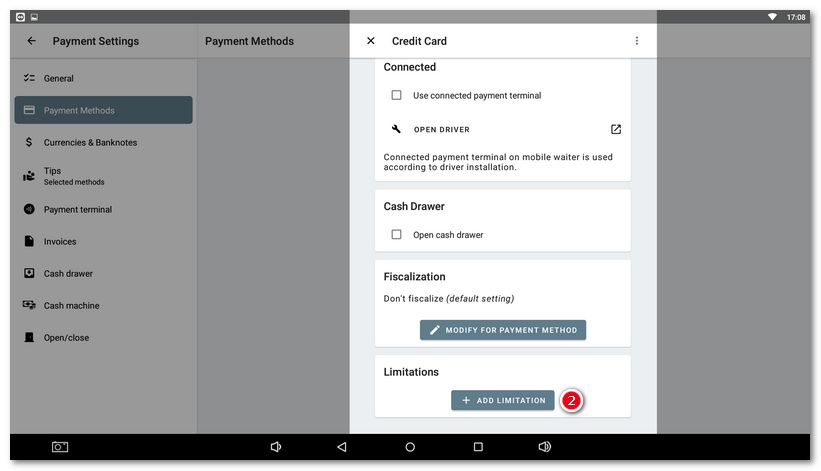
|
First select how the rules should be evaluated. If you are adding only one rule for the given payment method, you do not need to deal with this. Rule evaluation is described above. Just tap the selected option at the top of the rules. |

|
Then select from individual rules using the ADD CONDITION |

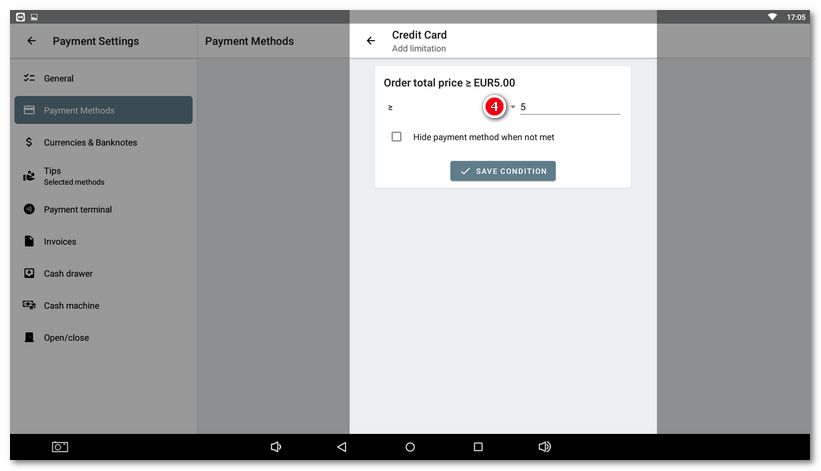
 button. As soon as you tap the selected rule, its settings will open. First we added for the payment card a rule that says that for this payment method the total amount of the order must be equal to or greater than CZK 120. So we entered the amount
  you can change the inequality signs in the rule. After specifying the rule, save it with the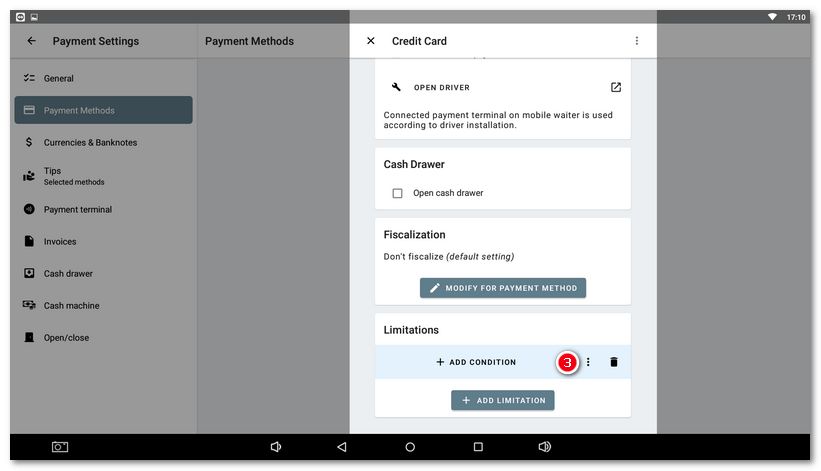
|
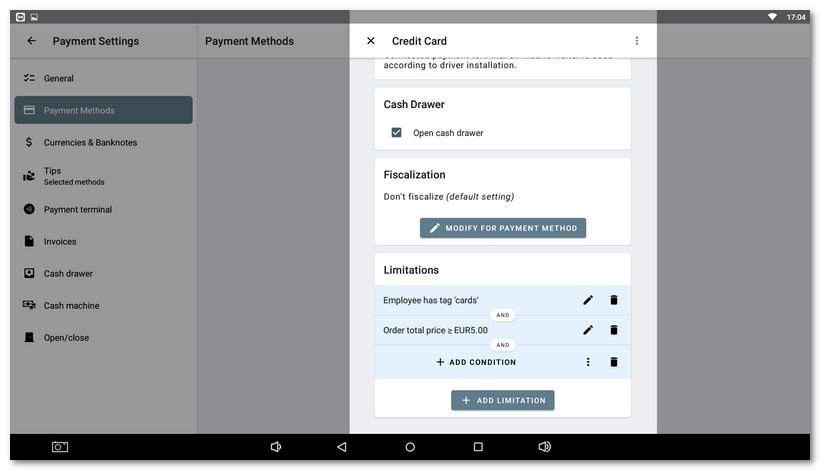
Using the conditions we set that a card payment can be made by an employee with the “card” label if the total amount to be paid is equal to or greater than 120 crowns. Use the pencil icon to edit the rule and the bin icon to delete it. We kept the payment method visible to the staff. Now go back to the main screen of the cash register and check the behavior of the rules you have set. |

|
With an unsuitable combination of rules you can invalidate previous rules in the group or no rule may be applied at all. Always test the behavior of the added rules in the payment dialog for the situations you are dealing with before going live! |

|
If the staff now rings up an order with an amount lower than CZK 120 and the employee does not have the required label, an exclamation mark will be displayed next to the Payment card payment method. When this payment method is used, a warning will be displayed explaining why it cannot be used. The same behavior will also be triggered if only one of the conditions is met; for example, the amount of the order will be higher than or equal to CZK 120, but the employee will not have the required label in their account. |