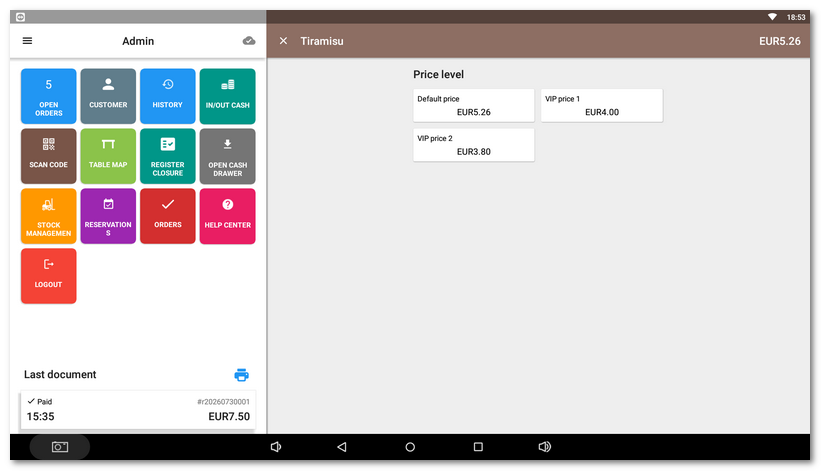
Price levels are used for quick selection of the sales price for a specific product. Together with the main price you can set up to 4 additional prices, which you then select when selling or which are applied automatically based on the selected customer or discount promotion. The names for the price levels you use can be set in Dotypos cloud the product list. You then set the prices of the levels in the properties of each product on the Pricing tab. Of course, you can also set price levels for products directly on the cash register.
You can use price levels:
•when selling products on the cash register,
•for customer accounts,
•for price promotions (Price plan and Happy Hours),
•in created customization.
How to set price levels in Dotypos cloud?
|
To enter the names of the price levels, open the Product list and click Price levels in the header. |

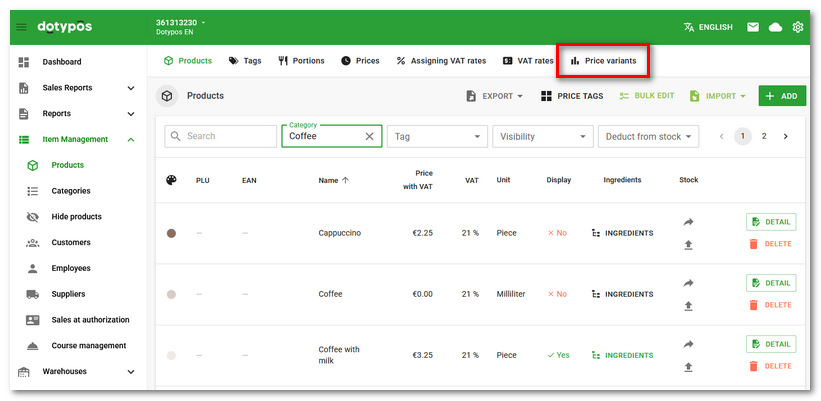
|
A dialog with 4 fields for the names of the individual price levels will be displayed. Price levels complement the standard sales prices set for products, therefore the fields are by default marked with the letters B–E. Price A is the standard sales price set for products. Enter your own names of the individual price levels into the fields and overwrite the default ones. The eye icon |

 next to each field indicates whether the particular price level should or should not be displayed when selling a product on the cash register, i.e. when adding a product to a bill. By default, price levels are displayed. By clicking the eye icon you hide the particular level for sales. The price level will then only be used if it is set or selected for a specific customer or discount promotion. It will not be possible to select it in a standard sales transaction, which shows the picture at the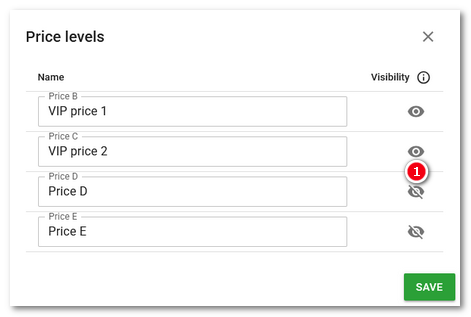
|
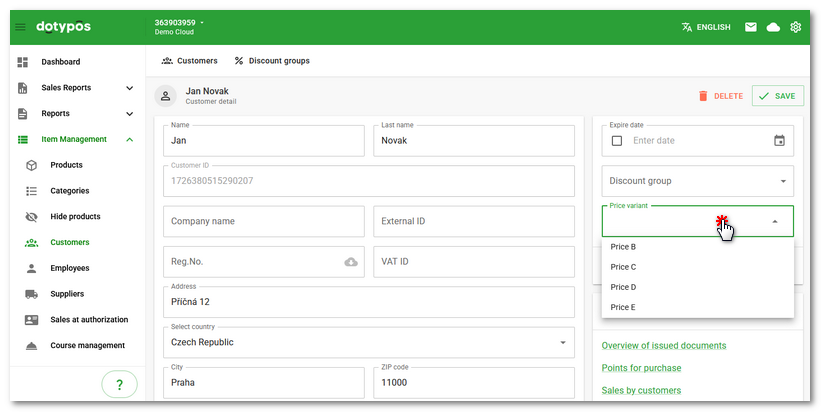
Price levels are displayed in the properties of customer accounts, where you can select from them and thus assign a price level to a specific customer. If you select this customer on the cash register, the price level will be automatically assigned to them and will be used for charged products, provided such a price level is defined in their product properties. |

|
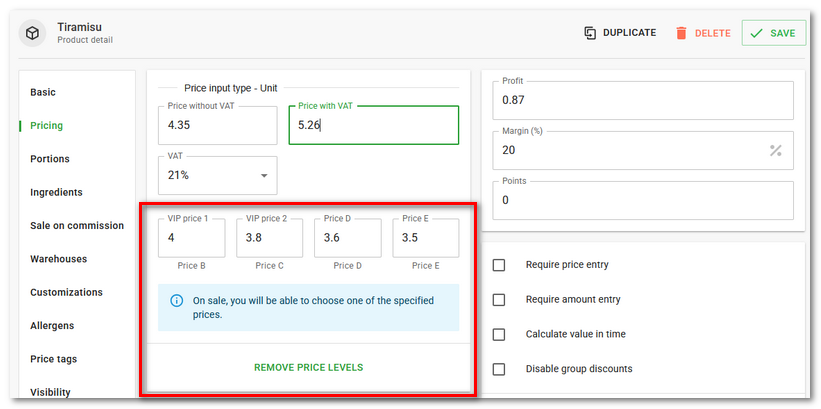
You set a specific price for a given price level in the product properties on the Pricing tab after clicking USE PRICE VARIANTS. Price levels are displayed under their names. If you want to remove price levels from a product, click REMOVE PRICE VARIANTS. |

Price levels displayed during sales together with the standard price: