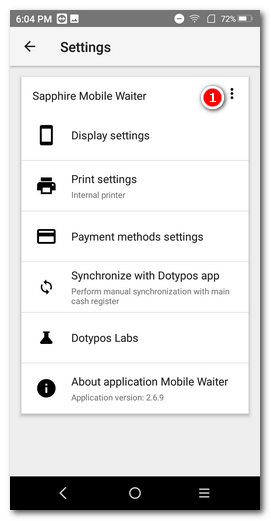
To get into the Mobile Waiter application settings, use the side menu.
Overview
In this section of the settings, you can change the name of the Mobile Waiter as it is displayed on the cash register and disconnect it from the paired cash register.
Display
Tap to go to the following options:
Display mode
Tap this option to switch between light and dark display modes.
POS mode
Determines how products are selected on the main screen.
•Auto – The Mobile Waiter uses the same POS mode settings as the paired cash register, except for the Instant sale mode, which is not supported by the Mobile Waiter.
•Catalog – Standard display of categories and products
•Simplified – Categories are shown as tiles instead of products, and after selecting a category, the products in that category are displayed.
Default Screen
Choose the screen that appears after issuing or parking an order. You can choose between the screen with product cards and the table map.
Show scan code button on main screen
Displays or hides the button for scanning barcodes using the built-in camera. The ability to scan a barcode depends on the properties of the device’s camera and lighting conditions. You can scan a product barcode or a customer card.
Sales screen
Column count
The number of columns into which the products will be divided on the main screen of the Mobile Waiter. Choose the number of columns with regard to the resolution of the device on which you use the Mobile Waiter. A higher number of columns means smaller product tiles. The Auto option automatically adjusts the number of columns from 1 to 6 according to the display resolution. The single-column view is suitable for mobile devices with a portrait display.
Print settings
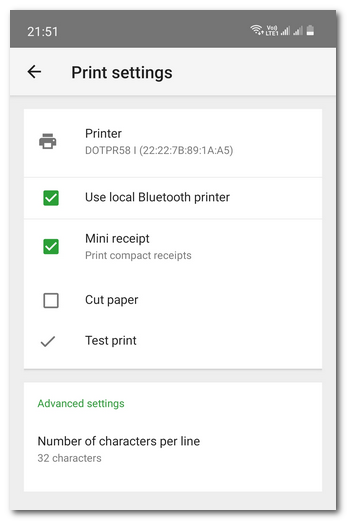
Selection and settings of the printer for direct printing from the Mobile Waiter. However, the print settings in the cash register still apply as well. If the printing of receipts and orders is active in Dotypos, the receipt and the kitchen ticket will also be printed simultaneously on the printers specified in the Dotypos settings. More about printing from the Mobile Waiter can be found in the preceding chapter Working with orders. If the device has a built-in printer, it will be selected automatically in this setting.
Printer
Tap to select the built-in printer or a paired Bluetooth printer. The 58 mm mobile printer from Dotypos is labeled DOTPR58. If you do not see the printer in the list, you need to pair it with your mobile device first.
Print on local printer
Enables printing on the printer selected above. Used for temporarily enabling or disabling local printing. If you turn off this setting, printing will be directed to the printer connected to the main cash register.
Mini receipt
Prints the receipt in a compact format to save thermal paper.
Cut paper
Enabling this option allows supported printers to automatically cut the paper after printing a receipt.
Print density
The selected print density lets you influence the appearance of printouts on the printers in the payment terminals Dotypay Nexgo N86 and Nexgo N86 Pro. This option is supported only by the printers in these devices. Otherwise, it has no effect on printing.
Number of characters per line
The number of printable characters per line. For a 58 mm printer, leave the default value of 32 characters.
Test print
Tap to print a test text to verify communication with the built-in (paired) printer.
Labs
After enabling, you can activate experimental features that have not yet been fully tested or officially released.
About
The application version number and device description – useful when contacting technical support.
|
Using the Mobile Waiter is also related to these settings in the touch cash register. |