In some lists there is the function Bulk edit. This function allows you to choose multiple items that can be moved to a different category, deleted, or modified for example allergens or other parameters. Options differ, depending on the selected List. Below are given the instructions how to use multiple select with the list Products.
|
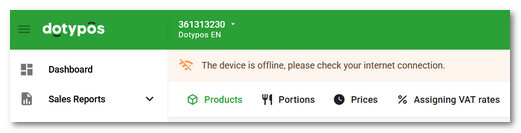
If the warning message The device is offline, please check your internet connection is displayed in the page header, keep the current page open in the browser, do not close the browser and do not perform any other operations until you have resolved the cause of the outage and the warning disappears. Otherwise, you may lose your work in progress.
|

|
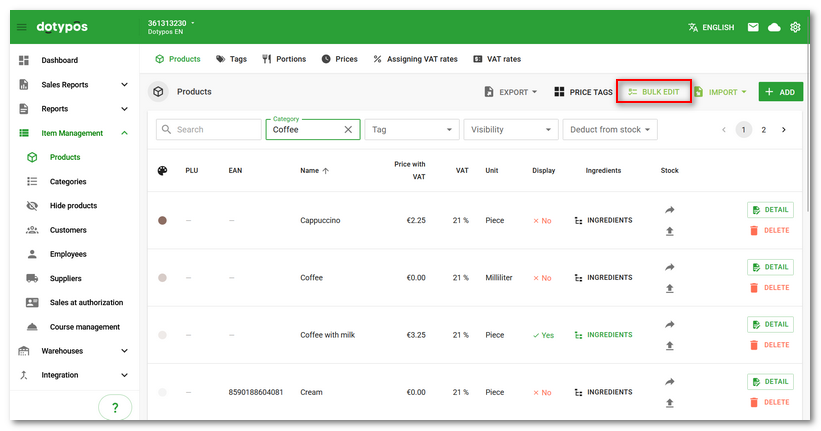
Tap the BULK EDIT |

 button in the product list.
|
In the next window, select the items for which you want to change the properties in bulk. You select individual items by ticking them You can limit the displayed products using filters After selecting the products, continue with the EDIT 3 ITEMS button |

 . If you mark multiple products this way based on different filters, they are always added to the ones previously selected. To remove items from the selection, you must apply the same filter and uncheck the products, or refresh the page in your browser (F5 key). This will clear the selected items. If you select all products using the header, it will always select only the items visible on the current page. To select/deselect all filtered products (including those on other pages), click the arrow
  in the header
  .
. . In addition to the filters shown by default, you can use the
  to proceed to the next step, which is the actual bulk change of properties for the selected products.
|
At this step, you can use the button in the header to BULK DELETE the selected products. Instead of deleting them, however, we recommend temporarily hiding unnecessary products (by deactivating the Display option in their properties) and later, for example, renaming, editing, and showing them again. In this way, you will keep the POS database in better condition. In the case of bulk deletion of customers, it is possible to choose customer anonymization. In such a case, it will be permanently impossible to identify the customer in documents (sales) and reports. Anonymization is irreversible. 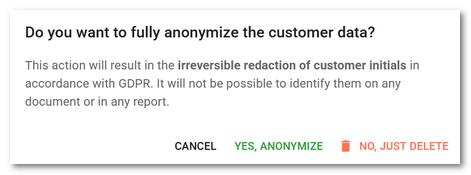 |

|
Now select which properties you need to change for the products. Each property you want to change must first be marked •Append – Adds to the products the labels/values entered in the bottom field (the existing labels will be kept for the products). Tapping the bottom field will display the existing labels/values. You can also enter a new label or value here; always confirm it with the ENTER key. •Remove – Removes from the products only the labels/values specified in the bottom field. •Overwrite actual value – Deletes all labels/values for the products and replaces them with the specified ones. •Delete – Deletes all labels/values for the products. Mark/select only those properties that you want to change. If you mark a property but do not specify it, an error will be shown before you proceed to the next step. When you have everything set, tap CONTINUE again in the header or footer. |

 and then its value must be selected or entered. In our case, we changed the color and added the
  :
:
|
A recap of the changes will be displayed in a clear table. Each row represents a product and the columns show the original and changed properties and values . By pressing the SAVE button, the changes you have made will be applied. |


|
Depending on the number of selected products and changes, a bulk edit can take several minutes. We recommend performing bulk changes for a maximum of 10,000 items at a time. Wait until it is finished; completion is indicated by a dialog, which you can then close by clicking OK. |


|
•When changing VAT in a bulk edit, the final sales price including VAT is preserved. When switching from a non‑VAT payer to a VAT payer, you can therefore easily change the tax rate for all products without having to use item import. The final sales prices will always remain unchanged. For changing the tax rate with the option to recalculate sales prices, see this chapter. •You cannot set the margin higher than 100%. |
How to restore deleted products?
Deleted products and categories can be restored using the Bulk edit function. However, we do not recommend deleting products or categories. It is better to temporarily hide them by deactivating the Display option in their settings or simply rename them, modify their properties, and use as a different product (category). This ensures the optimal health of the cash register database. Directly on the cash register, the option to show/hide a product is labelled as Display in Selection, and for a category there is an option Display on Main screen.
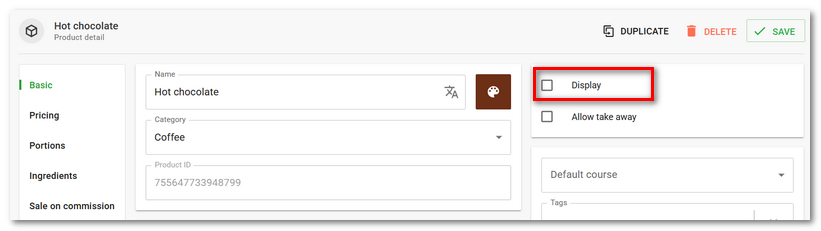
How to restore a deleted product or category?
|
In the product list or category list, click BULK EDIT in the header. |
|
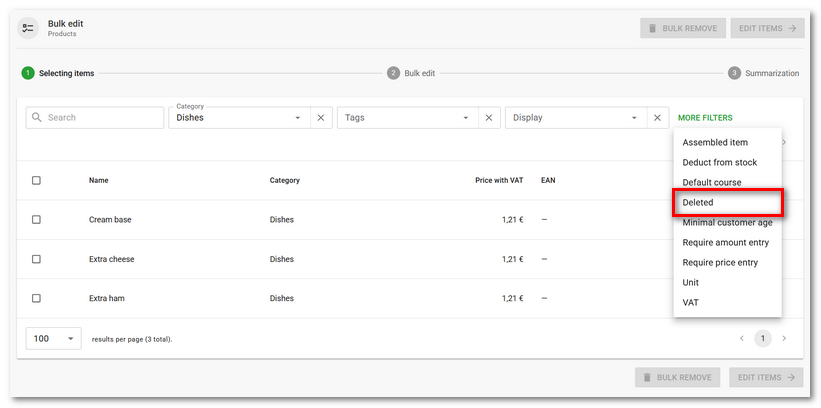
Now activate the display of deleted items. First, you need to add a filter for deleted products. Click the MORE FILTERS option and add the Deleted filter. |
|
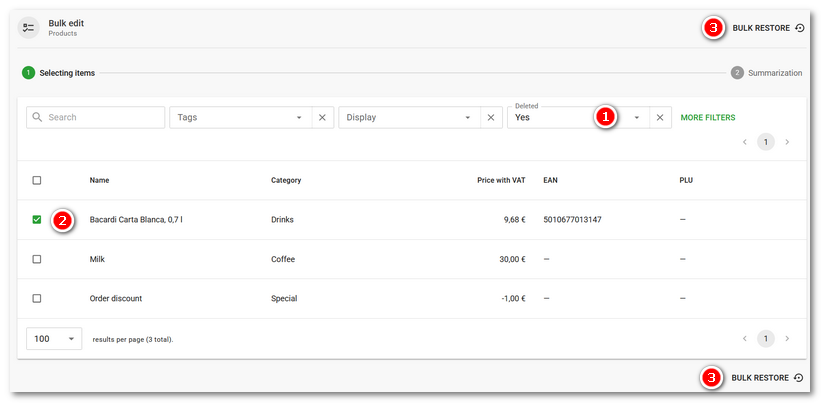
Set the Deleted filter to Yes |
|
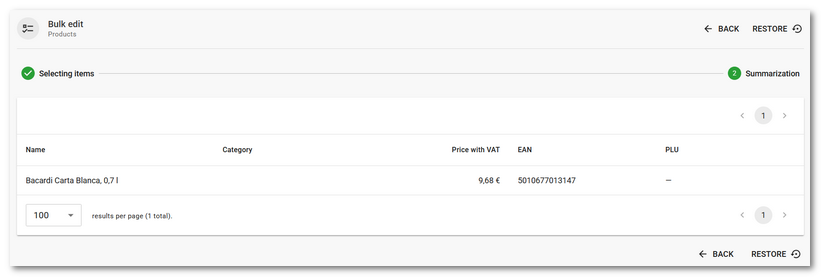
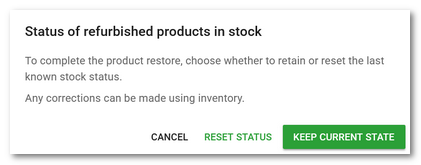
A summary with the products to be restored will be displayed. Now use the RESTORE button. A prompt will appear asking how the stock quantities of the restored products should be adjusted. Decide whether the last known stock quantities of the given products from before deletion should be used, or whether the quantity in stock should simply be set to zero. If no information about the stock quantity status exists, zero will always be set. After choosing one of the options, the products will be restored. |