Issued receipts
The Sales Reports » Issued documents tab is used to view all issued documents. These documents can be filtered by various parameters. In the default view, the documents are sorted by date and time of issue. The report of issued documents is directed to the sales data report Issued documents. The Reports chapter shows how to work with the reports.
|
Dotypos allows the integration of The NetRex camera system. If you use it, you can play back a camera record from your establishment for each selected receipt. You can find more information in the chapter The NetRex camera system. |

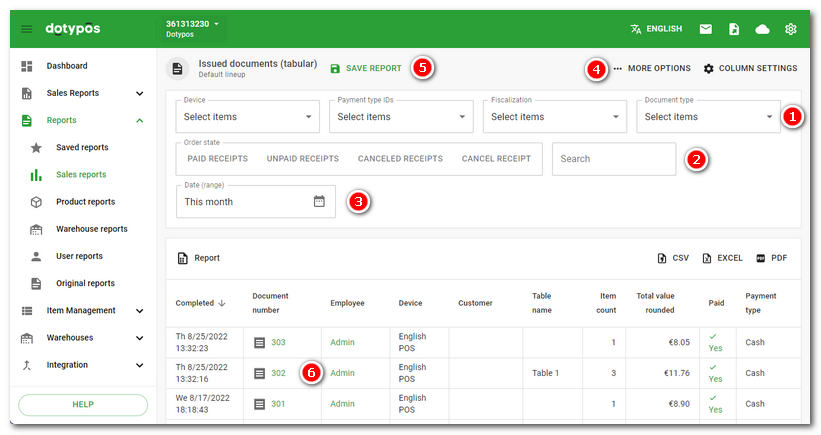
•By selecting from the drop-down menus  you can limit the list to a specific cash register, payment method or document type (receipt / invoice). The Payment Type menu also contains so-called hidden payment methods such as Qerko, Bolt, Wolt or Speedlo. Hidden payment methods only apply to supported ordering systems and therefore cannot be used when paying directly at the cash register. The corresponding hidden payment method is automatically marked with the paid bill from the corresponding supported service.
•Click on the options in the section  to select the criteria according to which only selected documents will be displayed in the overview. If no options are selected (see image above), or if all options are selected, all issued documents will be displayed. Selecting one option will display the relevant documents, for example only cancelled documents. Tap the button again to cancel the filter.
•Use the menu  to set the time period of the report.
•The  option lets you filter the overview based on additional selected criteria (MORE FILTERS). In the header
  you can export data to .pdf, .xlsx and .csv formats, or save the report to create your own custom overview. You can find Saved reports under the Reports » Saved reports tab.
•In section  you can add, remove or change the order of columns in the list (the COLUMNS option). The order of the so‑called grouping columns then determines the layout of the overview, i.e. it defines according to which data the list (report) will be grouped. How to work with reports is clearly shown in the Reports chapter. You can also activate a custom end of day here.
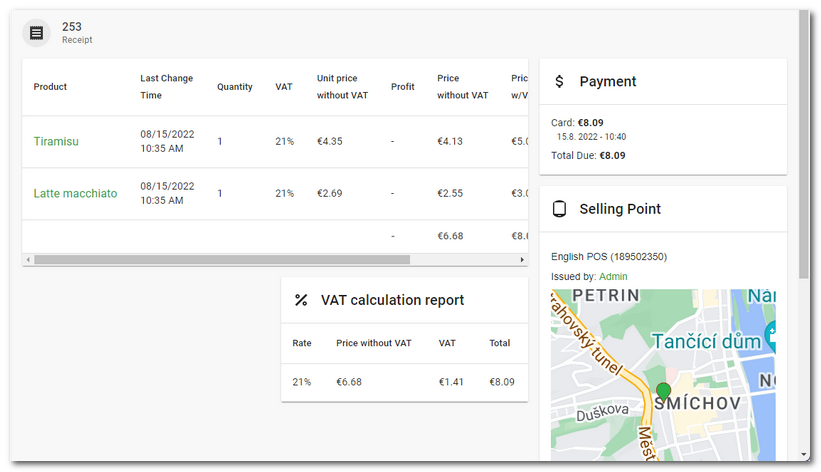
•By clicking an employee or customer in the list (column)  you will display a data report with sales filtered by the selected customer or employee. By clicking the receipt number you will display details of the selected transaction, see the image below. A bill paid by card contains the transaction number (Transaction ID), so you can easily match card payments from the cash register with the payment statement from the bank. In the receipt details you will also find any tips, charged combinations (extra side dishes), the entered number of guests and the payment history, if the payment method was later changed for the receipt.
•In the details of the selected transaction, click on the associated customer or table to open the corresponding data report with documents filtered according to the selection. For the canceled order, click on the number of the correction document to open the related cancellation receipt.
Partially settled orders
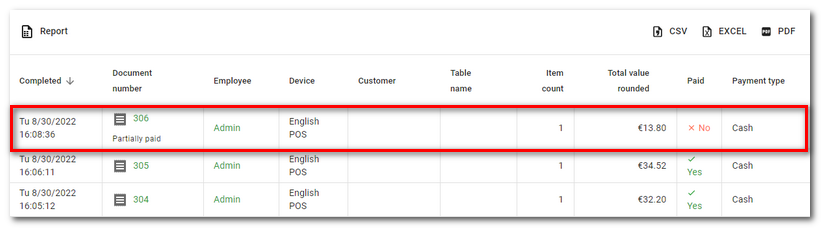
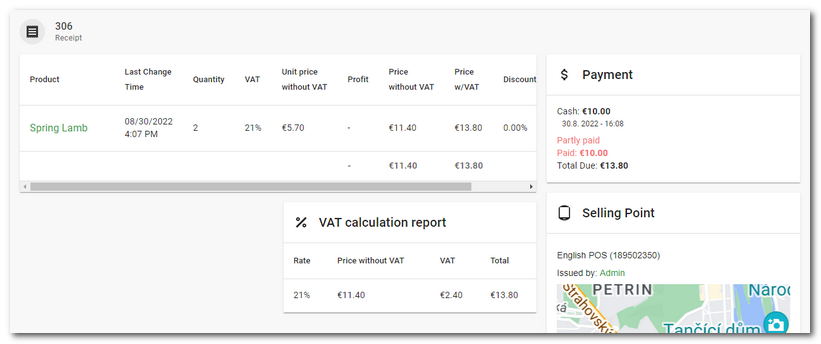
The order can be settled partially with the remainder settled later, for example the next day. In this case, you will see it in Dotypos Cloud in Documents issued and in the payment note in Partially paid. For more information about a specific document, click on the document number displayed.
|
To see the procedure for partially settling (paying off) the order in the cash register, take a look at this chapter. |