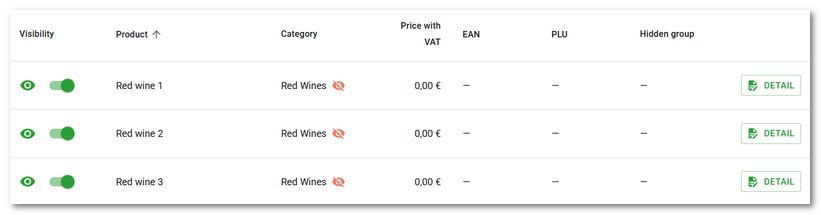
If you use multiple cash registers with the same products and you need to hide a specific product from sale on some cash registers, you can do this through visibility settings. Here you create groups that hide selected products on selected cash registers, or you can simply mark a selected product to be hidden or hide a category based on a tag. You will also see a list of cash registers here with the numbers of hidden products.
It is always better to temporarily hide a product instead of deleting it, and later show the modified product again and use it as a new product. This helps keep the cash register database in good condition. So it is good to recap that for hiding products or categories you can use the following options in Dotypos:
Options for hiding products and categories |
|
|---|---|
|
|
The Show as box option in the product properties in Item management on the cash register in the Dotypos application |
Hides the product on all cash registers within one cloud. Suitable e.g. for products used in Ingredients that you stock, but do not sell directly. |
An added tag in the category properties in Item management on the cash register in the Dotypos application |
After appropriate configuration, the category will be hidden on all cash registers within one cloud based on the tag. Suitable if you need to hide a category only on some cash registers within one cloud. |
Hiding a product for order services in Order settings on the cash register in Application settings in Dotypos |
Using the |
|
|
The Display option in the product properties (see the Product list in Remote management) |
Hides the product on all cash registers within one cloud. Suitable e.g. for products used in Ingredients that you stock, but do not sell directly. |
An added tag in the category properties in the Category list in Remote management |
After appropriate configuration, the category will be hidden on all cash registers within one cloud based on the tag. Suitable if you need to hide a category only on some cash registers within one cloud. |
Visibility settings (the Visibility option in the Product list in Remote management) |
Allows you to hide products for selected cash registers. Suitable if you need to hide a product only on some cash registers within one cloud. |
Hiding a product in the menu for order services in Remote management |
Using the |

 icon in the order menu, you hide the product only within the given order service, e.g. when it is sold out. It will still be displayed in the cash register for regular sales.
Hiding a category based on a tag
How to directly hide products on selected cash registers
|
In the product list, click the Visibility |

 item in the header. An overview of all cash registers in the cloud will open. In the overview, you can see how many products are visible and how many are hidden. With the
  button, you open the list of all products for the selected cash register.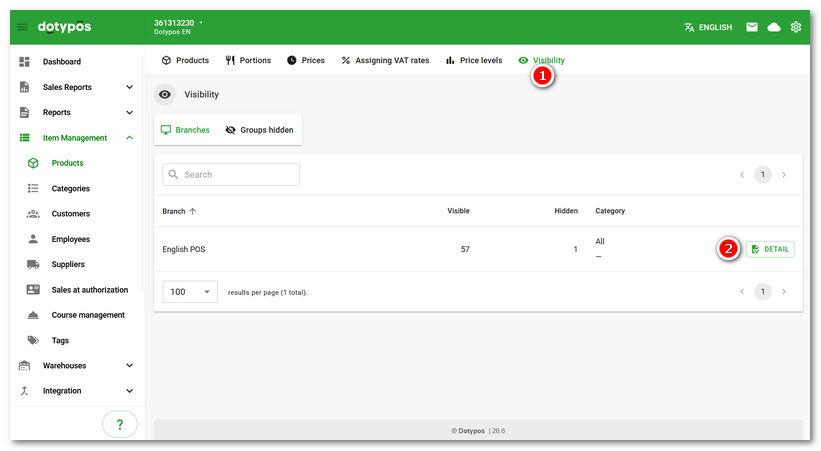
|
From the list, select the products to be hidden on the given cash register. You do this simply by switching the toggles |

 button, you go to the product properties. You can limit the products in the list using the filters above the list. The
  filter displays products that have the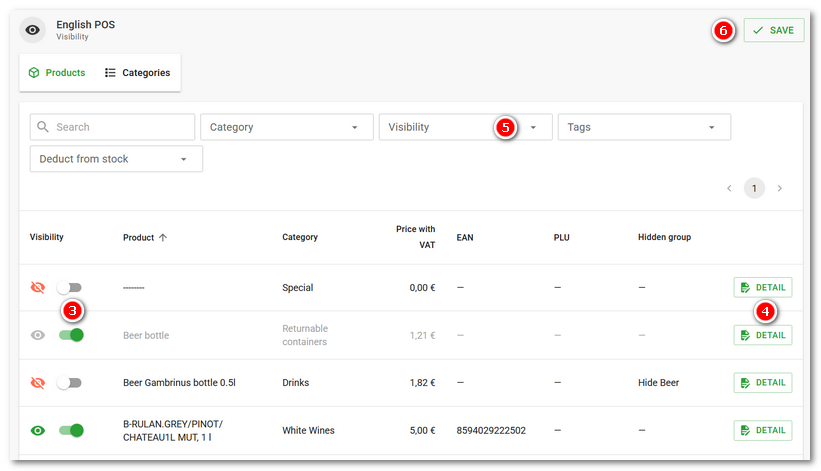
The hide status of individual products is indicated by the toggle and the eye icon:
|
The product display is not restricted in any way. The product is displayed on all cash registers. |
|
The product is directly hidden based on the selection / toggle in the visibility list. |
|
The product is hidden for all cash registers based on the disabled Display option in the product properties. Changing visibility using the toggle will have no effect. |
|
The product is hidden based on a hiding group. Changing visibility using the toggle will remove the product from the hiding group and it will then be displayed as standard. |


|
Once you have set hiding for all products using the toggles, save the settings with the SAVE |

 button at the top of the page (see the
|
You can verify or edit hiding in the product properties on the Visibility tab. With the buttons |

 you turn the product visibility on / off for individual cash registers. Any set rules / groups for hiding are thus overridden. By clicking the group name
  you switch to that group.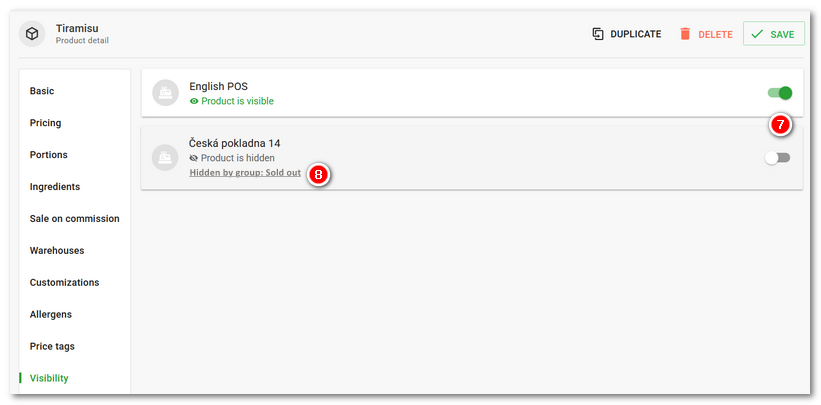
|
The maximum number of hidden products should not exceed 1000. Otherwise, the response time of the Remote Management interface may increase. |

Hiding groups
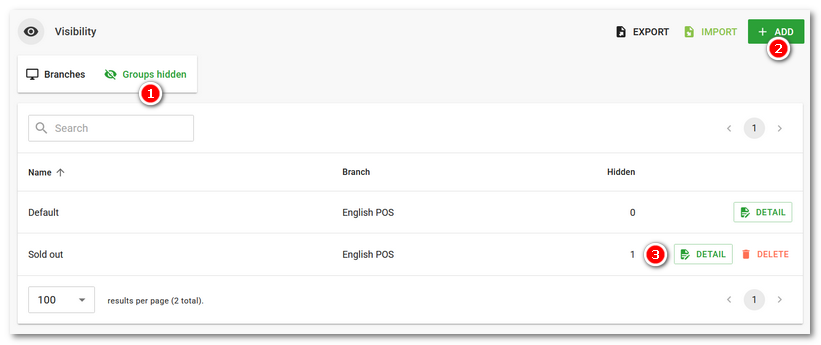
You can also use groups to hide products. The default groups correspond to each cash register within the cloud and are created automatically. As soon as you hide a product using the procedure above, it is automatically added to the group under the corresponding cash register. These default groups cannot be deleted. However, you can create your own hiding group with products for a particular cash register, and that group can be deleted.
|
In the Visibility section, switch the top panel to Hiding groups |
|
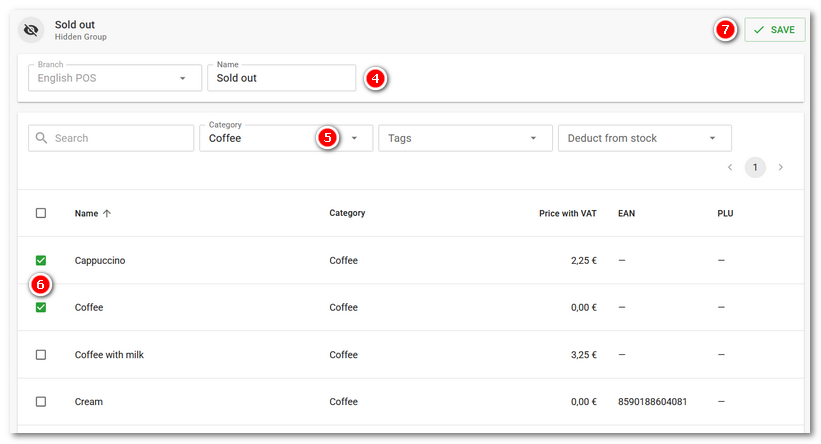
For a new hiding group, select the cash register to which it will be applied and enter its name |
|
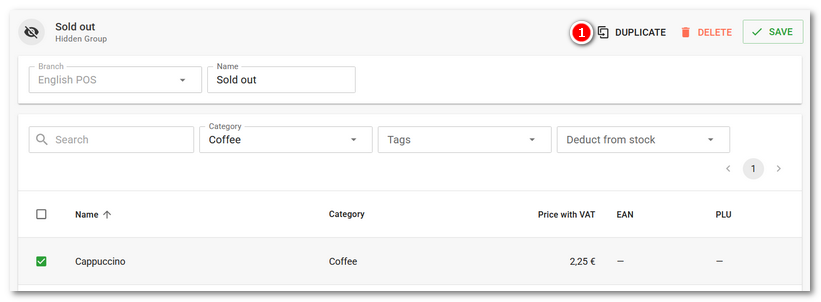
The advantage of a group is that you can completely duplicate it to another cash register that has the same products. Just open the group with the DETAIL button and use the DUPLICATE |
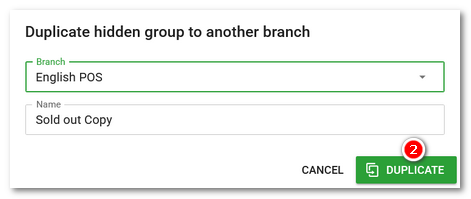
Hiding a category based on a tag
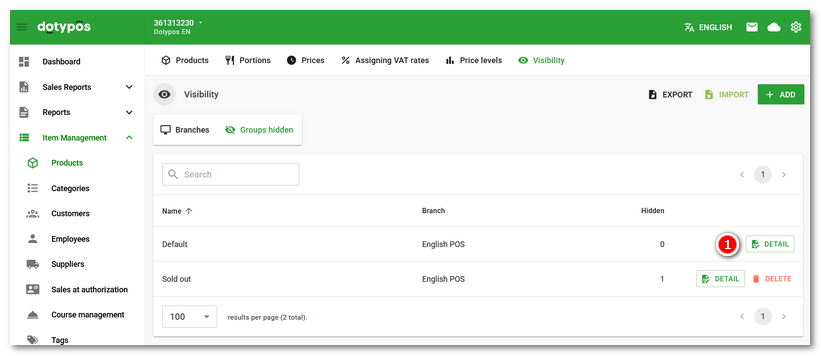
|
In the Visibility section, use the DETAIL |
|
In the header, switch to Categories |
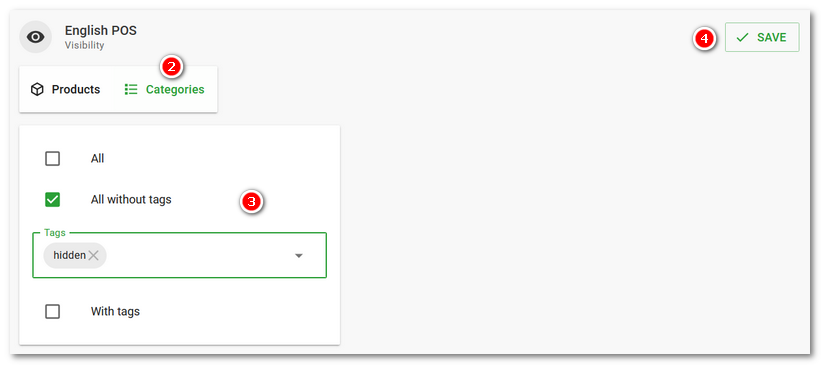
•All - Standard setting when all created categories will be displayed on the cash register.
•All without tags - Only categories that do not have tags entered in the field  will be displayed. When entering tags, already created tags are suggested.
•With tags - Only categories that have tags entered in the field will be displayed. When entering tags, already created tags are suggested.
|
Now go to the Category list, open the properties of the selected category and add the same tag as in the settings in the previous step. Save the change. The category will be hidden for sales on the cash registers. |
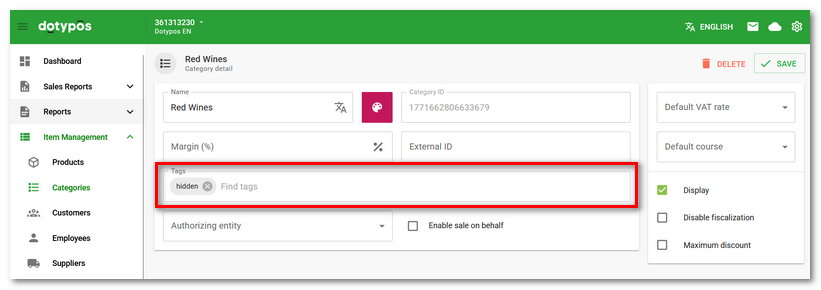
|
In the product overview for hiding, an icon |
 will be displayed for a hidden category. All products in this category will therefore be hidden for sales on the cash registers.