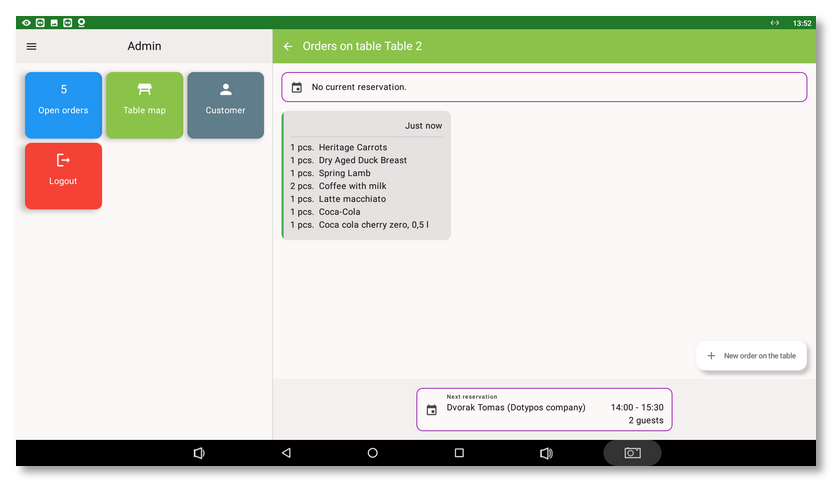
If you are using Mobile Waiter on a device with a display size of at least 8", you will see a similar interface to Dotypos app. Working with Mobile Waiter is thus identical to working with Dotypos. If the display size is smaller, Mobile Waiter is displayed in a simplified mobile view.
In the full view, the Mobile Waiter installed on the cash register (without Dotypos app installed) can replace the linked cash register in certain cases.
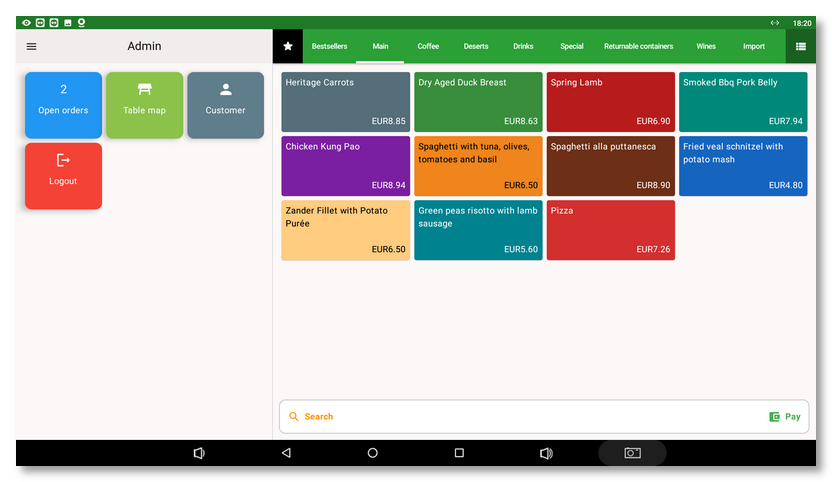
Once you add at least one product to an order  , buttons for basic order operations appear in the bottom left corner. This allows you to easily park the order or split items on the order to be paid separately
  . There is also a button for order operations
  . If you tap the selected order item
  , it will expand / collapse and using the + / - buttons you can change its quantity or remove it from the order. By tapping the
  icon you open the side menu.
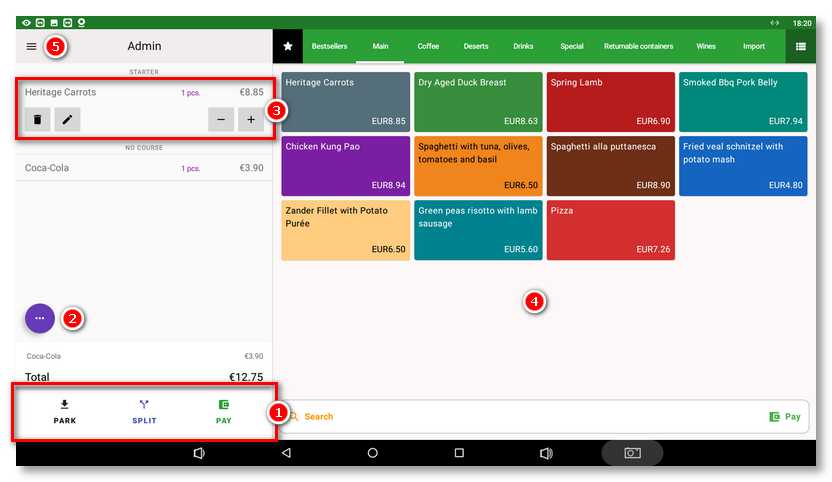
The pencil button  lets you enter the quantity, add a note, set a discount for the selected item, add customer points, select a portion or assign a specific course. Always confirm the changes you have made by tapping the Set
  button. You can also select a course by long-tapping the product tiles in section (see the figure above above).
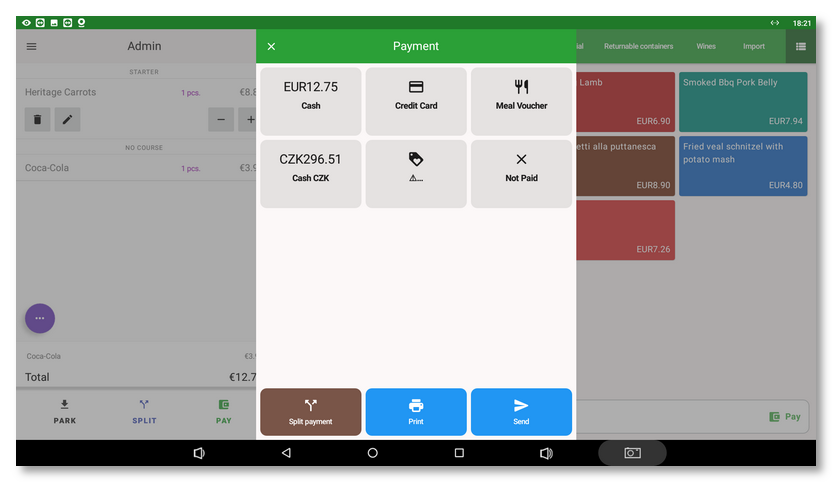
By tapping Pay in the bottom right corner of the screen, you will go to the payment dialog, where you can enter a possible tip, pay the order with a selected payment method, or split the payment between several payment methods.

You can zoom table map in or out using the scale in the bottom left corner or a two‑finger gesture. If you have multiple table map pages, you can switch between them in the bottom right corner. Just like in Dotypos, the time since the last change to the order at the table is color‑coded, as well as any upcoming or ongoing reservations.
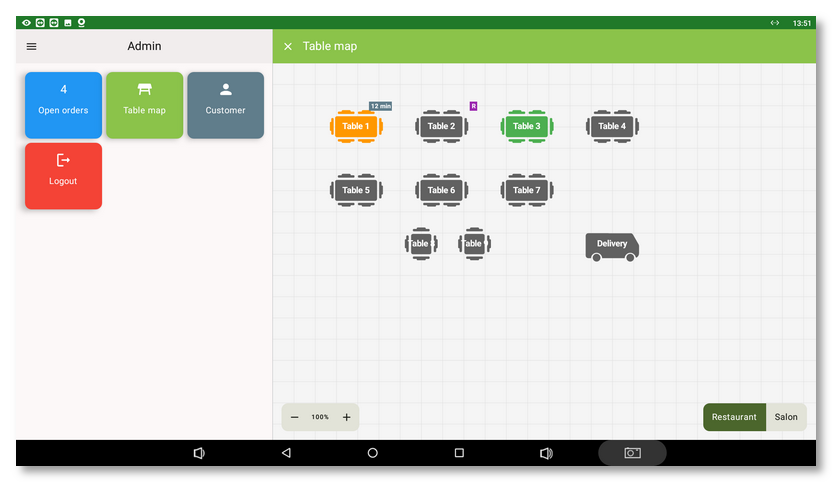
For details of an open account on a selected table, simply tap on the table. If there is one open account on a table, the items on that account will be displayed straight away. If there are multiple accounts open on the table, you will be able to choose which account you want to view the items. A long tap on a table will always take you to an overview of all the accounts on that table, including any reservation information.
The New Table Account button in the bottom right corner will take you to the products that you then add to this table. After adding the products, just park the order again.